
There is no separate registration-opens date. Participation opens the moment you publish and stops at the time you set in Entries close.
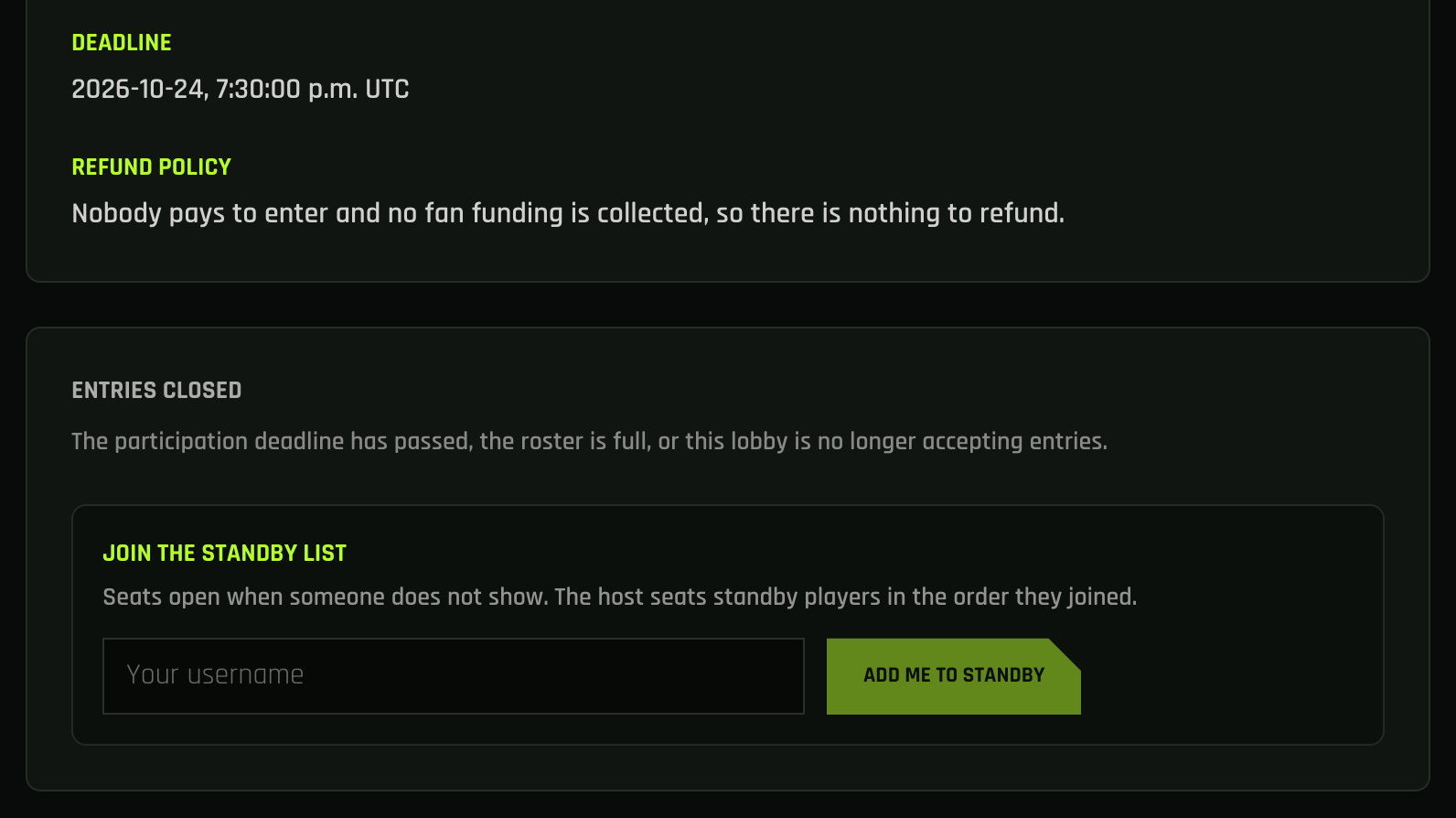
The states a lobby goes through
- 01
Draft — private
Only you and your moderators can open the page. Nobody can join. - 02
Live — participation open
The public URL goes live the moment you publish. Players can register, or submit proof, depending on how the winner is decided. A cash-pool lobby shows Funding while it collects contributions. - 03
Entries closed — the cutoff
New registrations and proofs stop at the Entries close time. The lobby stays Live, so a live event can keep running after the cutoff. - 04
Awarded or Cancelled — finished
Awarding the final placement or cancelling the lobby ends it. Nothing new is accepted and the console becomes read-only.
What closes entries
- The Entries close time — once the deadline you set has passed, registration and proof submissions both stop.
- The lobby is awarded or cancelled — a finished lobby accepts nothing new, whatever the deadline says.
- A participant limit — on a live event, regular seats close as soon as the roster is full. Extra players can join the standby list instead.
- Scoring starting — on a points-table event, entries lock once the first score has been recorded. If you set an Event start, they lock once that time has passed and a score exists.
When entries are closed or the roster is full: the standby list
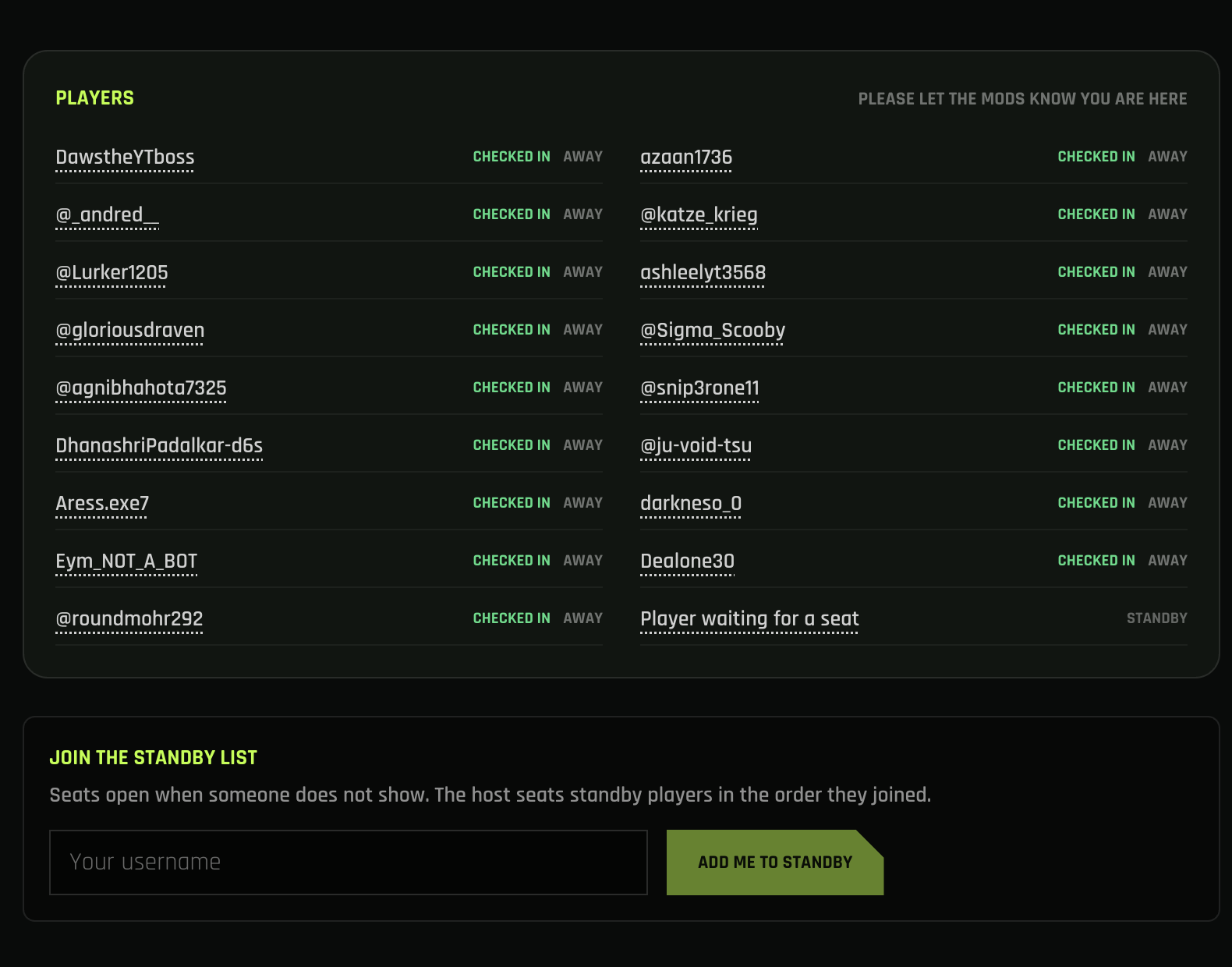
Closing registration stops new players from taking a regular seat; it does not end a live event. While the lobby is still Live, players can join the standby list. They reach it in one of two places, so there is nothing extra you need to send.
- People who are not watching the stream use the public lobby page. It shows “Entries closed” or “Roster full” with the standby form right under it.
- People already on your stream use the standings link you pinned in chat. Their Players list shows who is waiting, and the same standby form sits below the standings board.
Both forms add the player to the same queue. Use Copy standings link for chat in the host console for your viewers; use Copy public link everywhere else.
- 01
A player joins standby
They enter the username they use in the game and choose Add me to standby. They see a confirmation that they are on standby and that the host will call them in chat if a seat opens. This does not register them into a seat or increase the seated-player count. - 02
The host finds the queue
On the host console or the lobby’s Manage page, open Participants and choose the Standby filter. The Manage page’s Seats panel also shows how many people are waiting.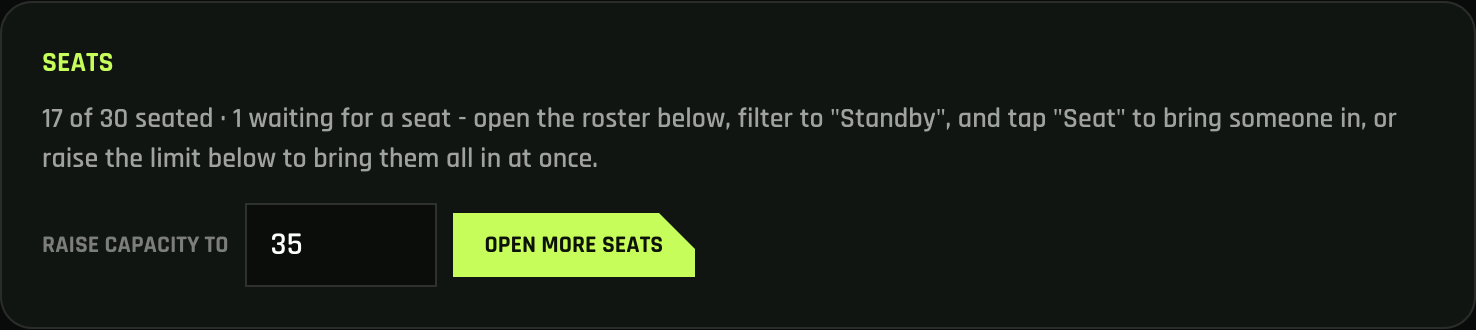
The Seats panel on Manage shows the waiting count and tells you where to open the roster queue. - 03
The host fills an open seat
If a player does not show, use Seat on a standby row. You can also raise the entry limit on the Manage page; that automatically seats the earliest people in the queue until the new capacity is full.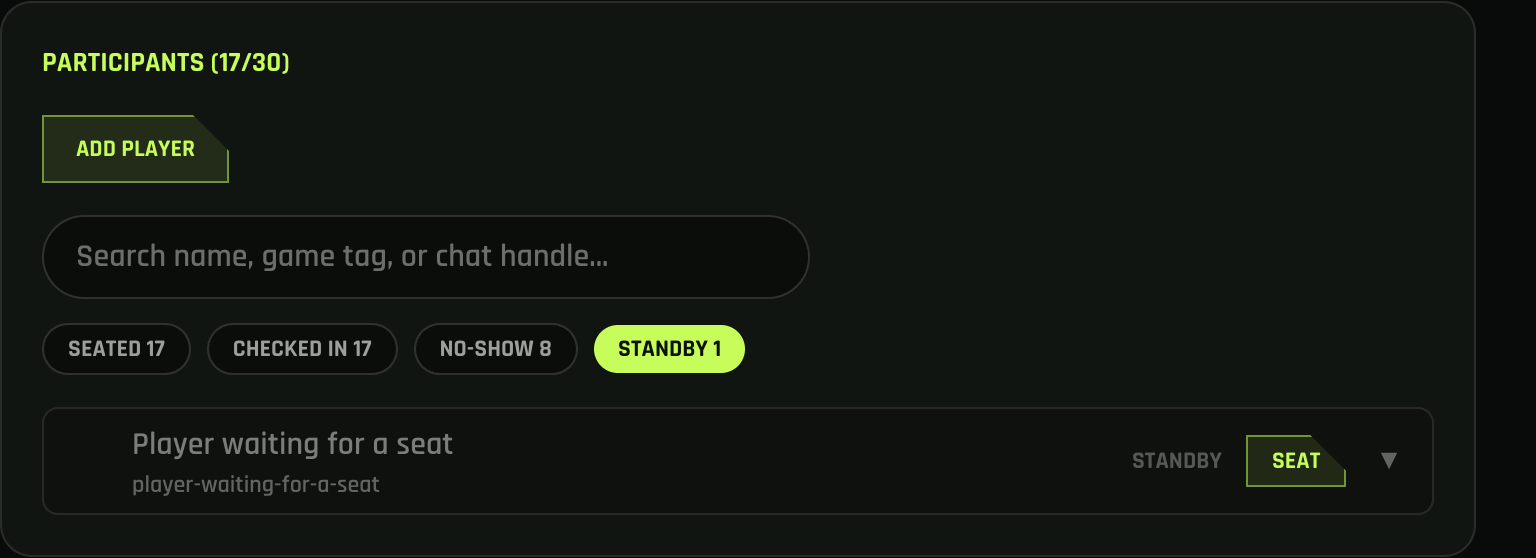
In Manage → Participants, select Standby. Use Seat to bring a waitlisted player into the event.